
Ezoic Video Ads Now Render Faster
Ezoic Video ads now render significantly faster in the Ezoic Video player, helping visitors spend less time waiting for in-content and floating video ads to begin. Ezoic rebuilt the way video ads are requested and managed behind the player, so ads start sooner and the player feels more responsive on the page.
For site owners already using Ezoic Video or Floating Video, the improvement is automatic. Your existing in-content, instream, and floating outstream video placements can now deliver ads faster without changing settings or adding new code.
Faster rendering matters because video is a high-CPM format, and a player that sits empty while ads are still loading can create a weaker visitor experience and missed monetization opportunities. This update helps video ads keep up with the rest of the page, whether visitors are reading content, using a tool, playing a browser game, or moving through an interactive site.
What Visitors Will Notice
The main benefit is simple: less waiting.
When a video player loads on your site, app, tool, or game, ads should begin more quickly than before. That means fewer moments where a visitor sees an empty or stalled player while the ad request catches up. The result is a video experience that feels more connected to the page around it.
This applies to the existing Ezoic Video experience, including in-content video placements and floating video ads. If you already use those features, your site receives the faster rendering automatically.
How To Use Ezoic Video
If you already use Ezoic Video, you do not need to take any action to get the faster ad rendering. The update improves the current Ezoic Video player and video ads behind the scenes.
To start using Ezoic Video, open the Ezoic Dashboard and go to Videos. From there, you can choose how the player appears on your site.
Auto-Insert can place a player on pages that do not already have a manual embed. In the Ezoic Dashboard, go to Player Settings, then Settings, and enable Automatically Insert Player.
You can also place videos manually. Use the Embed Code Generator or Embed Video option on the Overview screen, or copy an embed for a specific video from My Videos.
You do not need to upload your own videos before using Ezoic Video. In Video Content Settings, you can choose to show your own videos, relevant network videos, or both. That gives you a way to add video monetization even if video production is not part of your current workflow.
Floating Video Ads
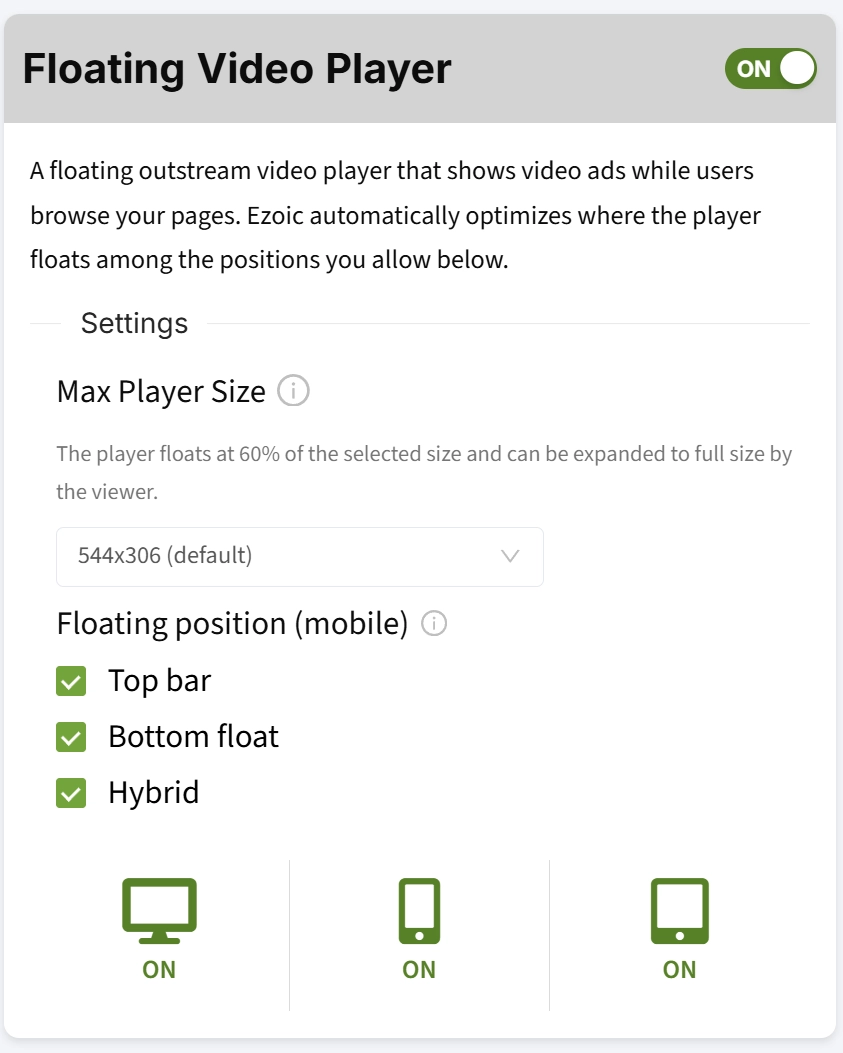
Floating Video lets you show an outstream video player while visitors browse your pages. To enable it, open the Ezoic Dashboard and go to Ezoic Ads, then Ad Types, then Floating Video. Open the Floating Video Player card and turn it ON.
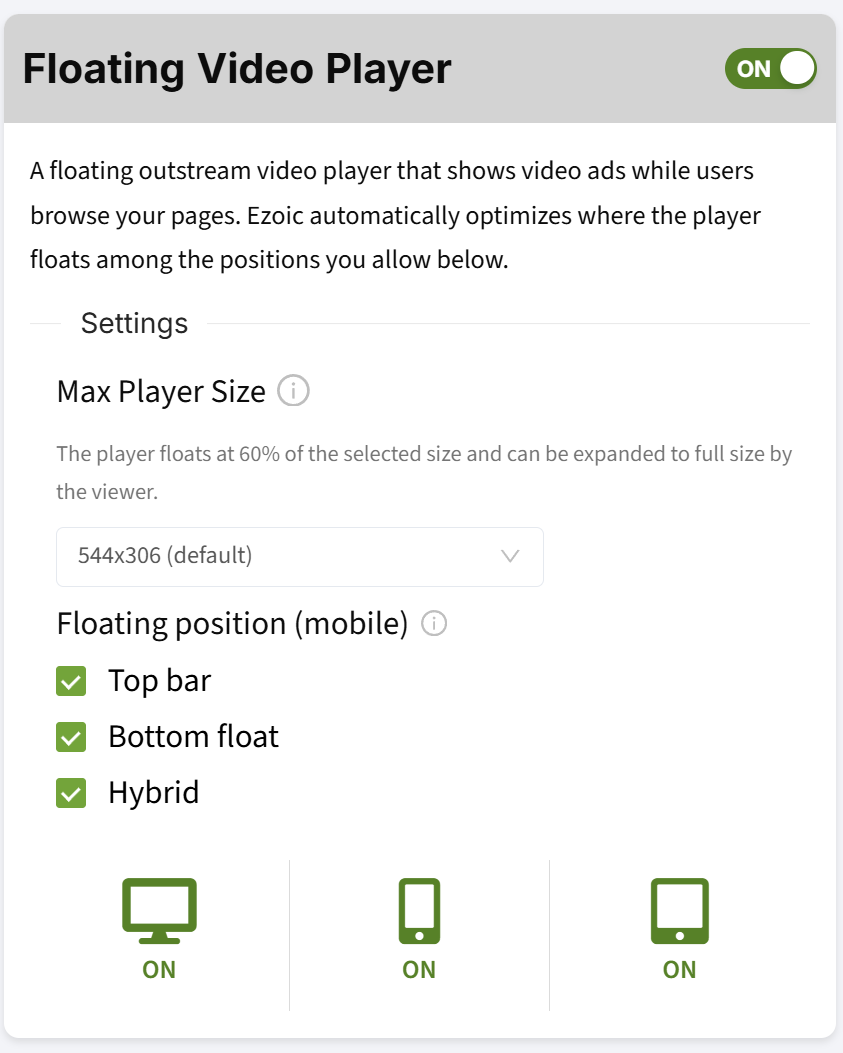
From this card, you can enable the floating player by device type for desktop, mobile, and tablet. You can also adjust Max Player Size and choose allowed mobile floating positions, including Top bar, Bottom float, and Hybrid.
These controls give you a practical way to match the floating player to your site layout while still benefiting from the faster video ad rendering now available in the player.
For more on Ezoic Video, visit the Ezoic Video product page or the getting started guide. For floating player controls, see the guide to controlling Floating Video Player size and position.