
Control the Size and Position of Ezoic’s Floating Video Player
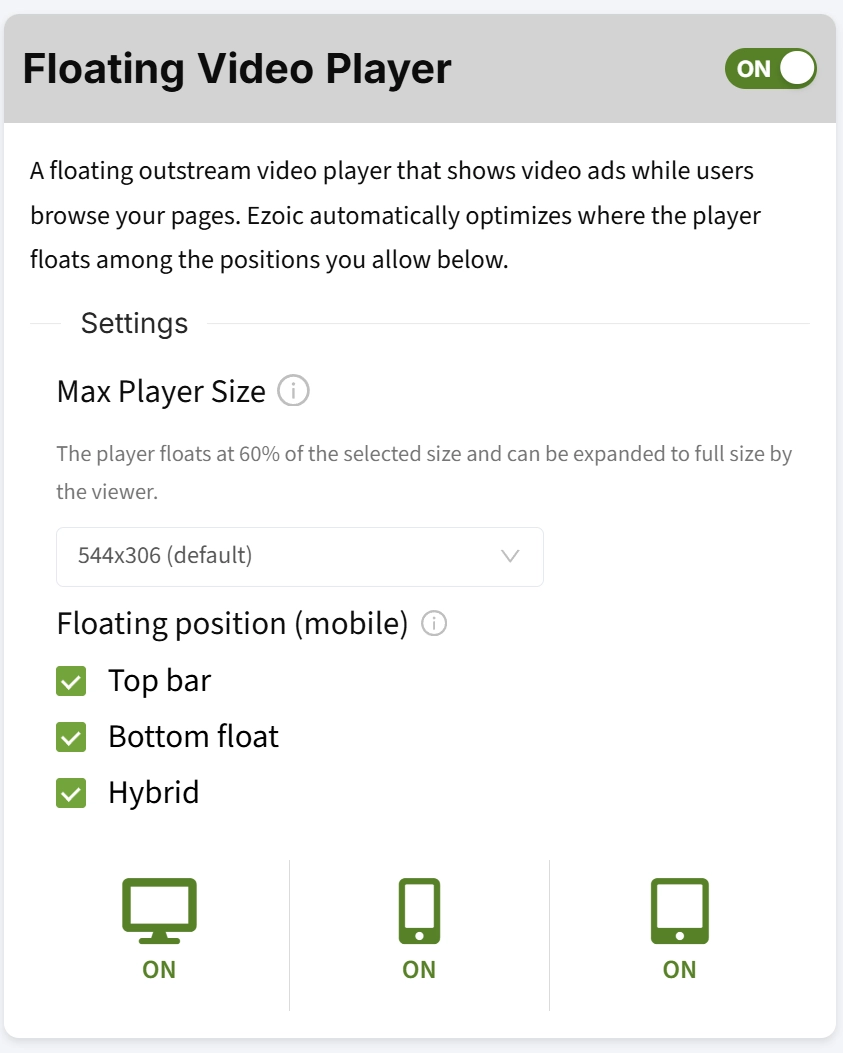
Ezoic’s Floating Video Player now gives you control over both the maximum player size and the mobile positions it can use. You choose the size and allowed placements, and Ezoic automatically optimizes among those options for revenue and visitor experience.
The Floating Video Player is a floating outstream video player that shows video ads while visitors browse your pages, rather than only playing inside a specific content block. With the new controls, you are no longer limited to a single fixed floating setup. You can decide where the player is allowed to appear, keep the layout choices that fit your site, app, tool, or game, and still let Ezoic choose the best-performing option from the set you approve.
Reported results from this optimization showed a 7.9% increase in video revenue, while bounce rate and time on site also improved.
What You Can Control
The Floating Video Player settings are available in the Ezoic Dashboard under Ezoic Ads → Ad Types → Floating Video. Open the Floating Video Player card and turn the main toggle ON.
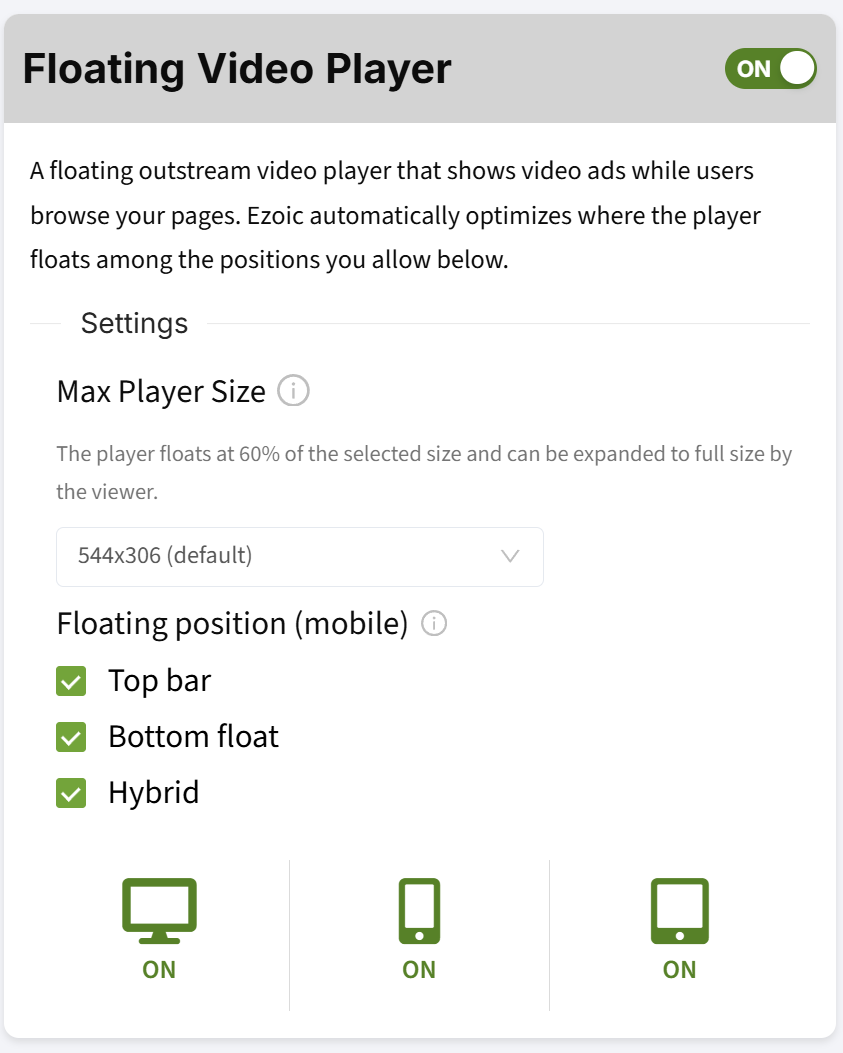
From that card, you can set the player’s maximum size using the Max Player Size dropdown. The available options are:
- 640x360
- 544x306 (default)
- 480x270
- 300x169
The recommended choice is 544x306 (default) or 640x360, because those sizes have the most advertiser demand. Viewers will not immediately see the player at the full selected size: the player floats at 60% of the selected size and can be expanded to full size by the viewer.
You can also choose where the player is allowed to float on mobile. Under Floating position (mobile), select any combination of:
- Top bar
- Bottom float
- Hybrid
Leaving all three selected is the recommended setup. That gives Ezoic’s optimization the widest set of approved positions to choose from, so it can select the best option for revenue and visitor experience without placing the player somewhere you have not allowed.
At the bottom of the card, you can enable the player by device. Desktop, Mobile, and Tablet can each be turned ON, so you can decide where the Floating Video Player should be active.
How to Start
To enable the feature, go to Ezoic Ads → Ad Types → Floating Video in the Ezoic Dashboard, open the Floating Video Player card, and turn the toggle ON. For most sites, the best starting setup is 544x306 (default) for Max Player Size, all three mobile positions selected, and the device types you want enabled.
For more background on video setup, see Ezoic’s support article on getting started with Ezoic Video or the Universal Player overview.