
See Whether Revenue Swings Are Yours or Your Niche's
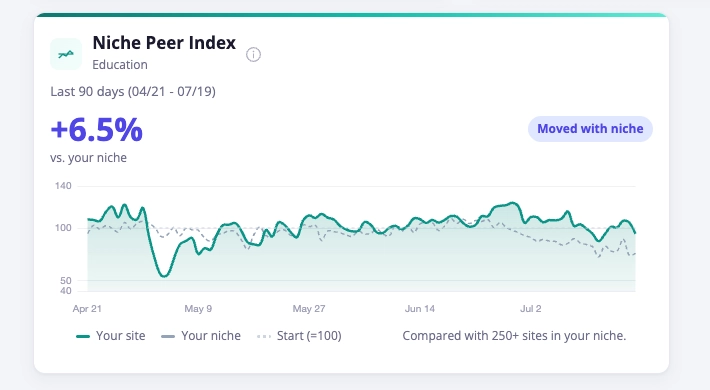
The Niche Peer Index is now available as a customizable widget in the Ezoic Dashboard. It shows whether your site’s revenue movement over the last 90 days is tracking with other sites in the same niche, running above the niche average, or falling below it.
That context matters when revenue changes suddenly. Instead of guessing whether a dip means something changed on your own site, you can check whether similar sites are seeing the same pattern. The same applies to spikes: the widget helps you understand whether growth is unique to your site or part of a wider niche trend.
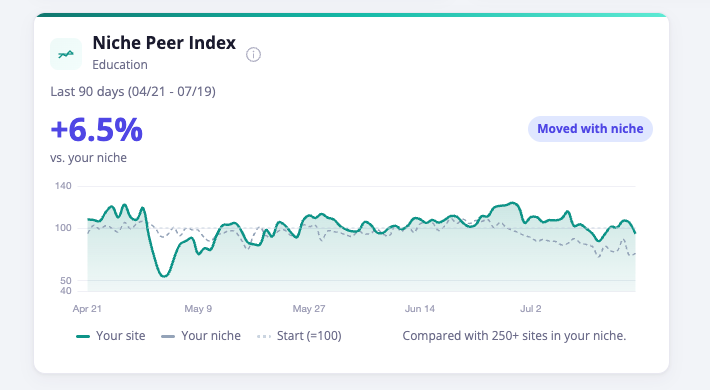
The widget compares your selected site’s recent performance against peer sites in the same niche using an indexed view, not raw revenue totals. That means you get useful comparison data without exposing any individual site’s dollar amounts.
In practical terms, the Niche Peer Index gives you a fast answer to a common question: “Is this happening to everyone like me, or just to my site?”
If your revenue drops and the widget shows your site moved with your niche, you can treat the change as broader market context instead of immediately looking for a site-specific issue. If your site is moving below the niche average, that is a signal to look more closely at your setup, traffic mix, content, or monetization performance. If your site is above the niche average, you can see that your recent performance is outperforming comparable sites.
What You Can See
The Niche Peer Index focuses on comparison, not clutter. It shows your site’s performance line next to your niche index over the last 90 days, along with a clear label indicating how your site is moving relative to peers.
You can use it to:
- Check whether a revenue dip or spike is niche-wide or specific to your site
- Compare your site’s recent trend against the niche average
- See whether your site is tracking with, above, or below similar sites
- Add revenue context directly to the dashboard view you already use
Ezoic serves a wide range of sites across the open web, and this widget is designed to give site owners more useful context inside the Ezoic Dashboard without requiring separate reports or manual comparisons.
How To Add It
To add the Niche Peer Index to your dashboard:
- Open the Ezoic Dashboard.
- Go to
Customize. - Select
Revenue. - Find
Niche Peer Index. - Drag the widget onto your dashboard.
Once added, the widget will display the selected site’s last 90 days of performance compared with other sites in the same niche.
The next time revenue moves unexpectedly, check the Niche Peer Index before assuming the change is isolated to your site. It gives you a clearer read on whether your performance is following your niche or moving differently from it.